



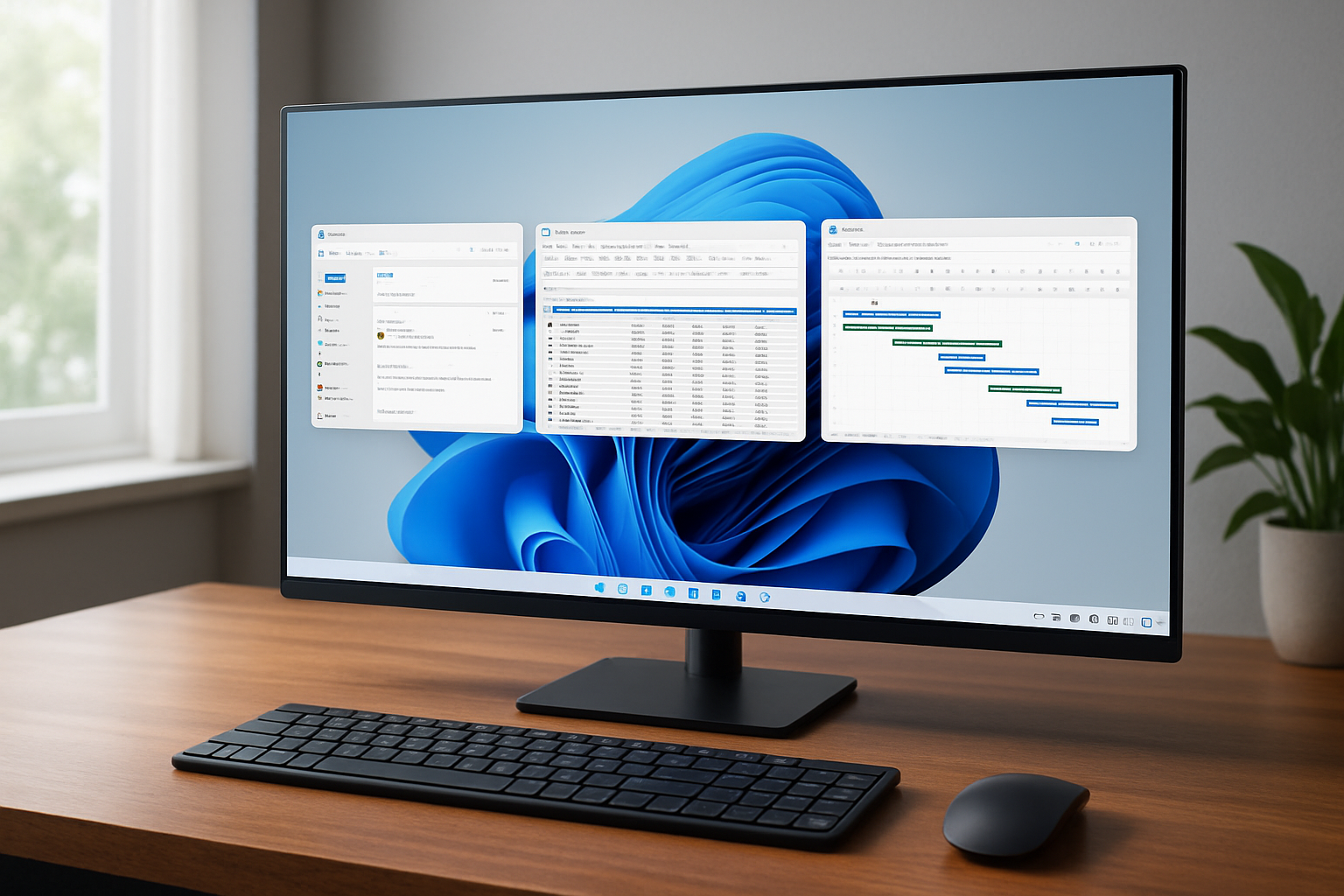
Windows 11 Virtual Desktops: Setup, Tips, Workflows
Last quarter a design agency we support tallied how much time its art directors spent hunting for the right window during peak deadlines. The internal audit put the figure at twenty-six minutes per person, per day. Multiply that by forty creatives and you are staring at a full workweek evaporating every month. Their remedy turned out to be hiding in plain sight: Windows 11 virtual desktops. Within a fortnight of disciplined use—each client campaign living on its own desktop—switch-over time dropped to single-digit minutes and feedback loops tightened enough to shave a full day off delivery cycles. That small story sums up why the feature matters: it keeps context intact. And unlike the Windows 10 implementation, the 11 version feels built for keyboard junkies and multi-screen traditionalists alike.
Windows 11 virtual desktops are a powerful way to reduce context-switching, stay organized, and improve focus, but their real value is realized when they’re designed as part of a broader remote-work and cloud workspace strategy. At IronOrbit, we help organizations extend these productivity gains beyond the local device with centralized, secure, high-performance cloud desktops through our INFINITY Workspaces, enabling teams to work from anywhere with consistent performance, policy-driven security, and scalable IT management.
What makes Windows 11 virtual desktops different
Microsoft finally treated Task View as a first-class citizen. The strip at the bottom no longer hides in the shadows; it is pinned next to Search by default. More importantly, we get up to sixteen desktops without registry hacks, persistent names that survive reboots, and per-desktop wallpapers that work on multi-monitor rigs. Those seemingly cosmetic touches solve two daily headaches: orientation and memory load.
Snap Layouts deserves a separate nod. Snap a Figma board left, Edge with dev tools right, hit Windows Key + Ctrl + Arrow Right, and you jump into a desktop where Outlook and Teams are already arranged in a vertical stack. Windows remembers each layout independently. Power users who relied on FancyZones in PowerToys finally have a native option that does not break during cumulative updates.
Keyboard handling is snappier as well. The common shortcut list we hand out to clients now looks like this:
• Win + Ctrl + D create new desktop
• Win + Ctrl + F4 close current desktop
• Win + Ctrl + ←/→ cycle desktops
• Alt + Tab surf apps across all desktops (configurable)
Notice the optional global Alt + Tab scope. Toggling it off in Settings > System > Multitasking constrains the switcher to the active desktop, a subtle tweak that stops your brain from context-switch whiplash.
A quick word on resource overhead. Each virtual desktop is a logical container, not a full VM. The extra RAM footprint is negligible—roughly 30–40 MB by our measurements—so even mid-range laptops handle a dozen desktops without sweating. GPU load remains tied to the actual windows in view, which means battery life suffers only if you load animations or live-updating dashboards on every workspace.
Where it still falls short
Two pain points linger. First, apps that insist on single-instance behavior (looking at you, Adobe Premiere) ignore desktop boundaries and pop to the foreground wherever they like. Second, there is no native rule-based engine to auto-assign programs to a given desktop. We lean on third-party helpers such as Microsoft PowerToys’ FancyZones (for window zones) or SylphyHorn (for rules) when power users demand automation.
From blank canvas to focused workflow
The basic setup takes thirty seconds. Press Windows Key + Tab, hit “+ New desktop,” rename it “Sprint 12” or “Budget 2025,” right-click, pick a distinctive backdrop. Simple. Where teams stumble is deciding a taxonomy that sticks. We recommend tying each desktop to an outcome rather than an app class—”Client A Review” beats “Email & Chat.” That language nudges the user toward single-task focus.
Developers. Our internal dev squads map desktop 1 to code editors, terminal, Docker stats; desktop 2 to browser preview; desktop 3 to backlog grooming. VS Code’s “Open in New Window” pairs nicely, letting two code branches live on separate desktops while sharing extensions.
Remote consultants. A common pattern is Work (VDI), Personal, Screenshare. The VDI session runs full screen, hiding the local inbox. During Zoom hand-offs we jump onto the Screenshare desktop that contains only sanitized data. Nothing tanks trust faster than an errant Slack DM popping up in front of a client.
Designers. They lean on Snap Layouts extensively. Left half: Photoshop. Right upper quadrant: reference board. Right lower quadrant: color palette plugin. Exporting assets? Switch to the “Delivery” desktop where OneDrive and naming scripts sit ready.
Administrators often ask about policy control. Group Policy does expose Task View buttons, but fine-grained desktop restrictions still require Intune custom profiles. In financial services we occasionally lock Alt + Tab to current desktop to reduce accidental data exposure across classification tiers.
Troubleshooting tip. If a desktop refuses to delete (rare bug in build 24H2), check for a hidden UWP process stuck in suspended state. End task via Task Manager, then close the desktop. Saves a reboot nine times out of ten.
Power shortcuts that seldom make the blog posts:
• Win + Tilde cycles Snap groups on ultrawide monitors.
• Ctrl + Win + Shift + Arrow → moves the active window to the next desktop while keeping focus on the current one—handy when tidying up between calls.
• Adding Task View to a Stream Deck macro shaves yet another second off the dance.
Cost-benefit check for decision makers
Rolling out virtual desktops company-wide is mostly an adoption exercise. Training sessions run under an hour and require zero licensing uplift. We do caution operations teams to update onboarding playbooks; new hires pick habits from day one or never. Where specialized compliance rules apply, budget roughly two days for Intune testing. Compared with acquiring additional physical monitors, the ROI shows up in weeks, not quarters.
Key takeaways for teams eyeing their next productivity win
Virtual desktops in Windows 11 are mature enough to anchor serious workflows, provided naming conventions, keyboard muscle memory, and minimal policy tweaks are in place. The feature will not replace true multi-monitor setups for data-dense roles like trading, yet it offers a lightweight layer of cognitive separation that flat-out saves time for creative, dev, and consulting staff. Organizations that treat the rollout as a behavioral upgrade instead of a tech novelty routinely see measurable productivity bumps inside a single sprint. If your environment demands stricter segregation or automated window routing, integrating PowerToys or a lightweight scripting tool bridges the gap without heavy spend. As always, we advise running a pilot group first; their feedback shapes guidelines that stick.
Frequently Asked Questions
Q: How many Windows 11 virtual desktops can I create?
Up to sixteen. Microsoft hard-codes the limit, and our stress tests show performance stays level even at the cap provided you have 8 GB of RAM or more.
Q: Can each virtual desktop use a different wallpaper?
Yes. Right-click the desktop thumbnail in Task View, choose “Choose background.” Teams often pick color-coded palettes to signal project phases at a glance.
Q: Is there a quick way to move an app to another desktop?
Drag the window thumbnail inside Task View, or press Ctrl + Win + Shift plus the arrow key. The latter keeps your focus on the current desktop while tidying up.
Q: Does using many desktops drain battery on a laptop?
Only marginally. Each desktop is a logical container, not a VM. Extra draw comes from the windows you keep active, not the desktops themselves.
Q: What’s the safest way to teach new hires this feature?
Provide a one-page cheat sheet with the core shortcuts, then pair them with a buddy for a day. Hands-on repetition cements the habit faster than slide decks.