



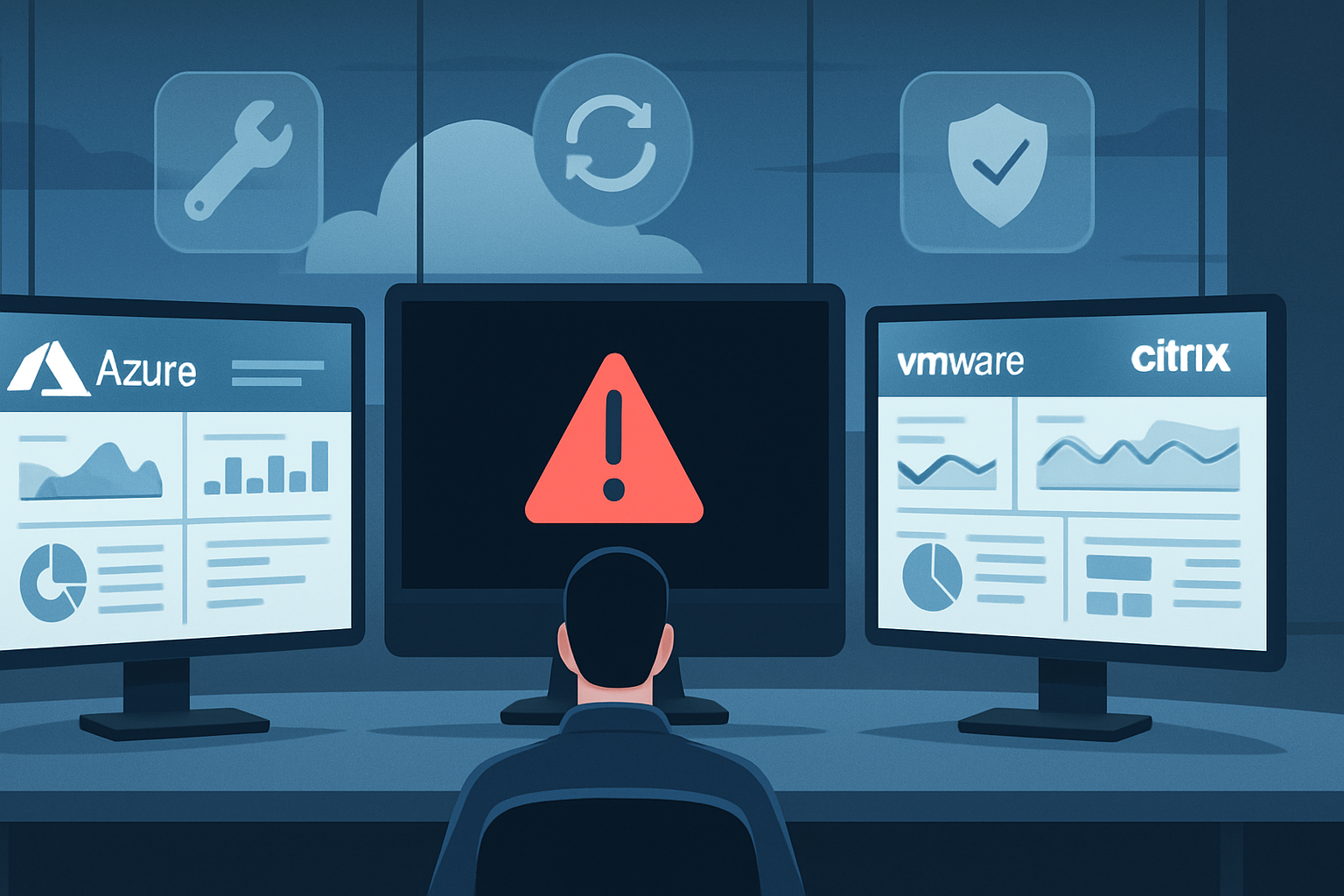
Virtual Desktop Black Screen: Practical Causes, Fixes, and Safeguards
On a Monday morning last quarter our help-desk dashboard lit up: twenty-three users in three time zones logged into their Azure Virtual Desktop pools and met nothing but an empty black window with a lonely cursor. Payroll approvals were due by noon. We had ninety minutes to get everyone working or face overtime costs. Episodes like that drive home a truth most whitepapers gloss over. A virtual desktop black screen is not an abstract glitch—it is lost revenue, missed SLAs, and frustrated teams burning coffee while IT scrambles. The good news: the pattern is predictable once you know where to look. Graphics driver mismatches, brittle RDP configuration, corrupted user profiles, and plain old network latency cause more than eighty percent of the cases we track. The remainder hides in oddball GPU scheduling bugs or mis-sized session hosts. By the time you finish reading, you will have a playbook that cuts diagnosis from hours to minutes and a set of safeguards that prevent the problem from resurfacing next quarter.
Why Virtual Desktops Go Dark
Every black screen looks identical to the user, yet the underlying triggers differ by environment. Treating them as one category leads to shotgun fixes and repeat incidents.
Four High-Impact Culprits We See Weekly
-
Graphics driver issues. A March 2024 NVIDIA vGaming release quietly broke hardware acceleration for Windows Server 2022. Users saw a cursor on a black canvas, nothing else. Rolling back to the previous WHQL version restored sessions instantly.
-
RDP configuration drift. Disabling the "Use hardware graphics adapter" flag buys a performance lift on lower-spec hosts, yet the same change under GPU-backed Azure Virtual Desktop images can freeze the login pipeline. Misaligned settings between client and session host account for roughly 40 percent of trouble tickets in our managed estates.
-
Corrupted user profile. When ntuser.dat bloats past 400 MB or key registry hives fail to load, Explorer stalls before drawing the shell, leaving users in purgatory. A fresh profile or Profile Container reset usually fixes the symptom.
-
Network latency and session timeout. Anything above 180 ms round-trip during login can outrun the default RDP handshake timers. The session establishes, the desktop fails to paint, and the user blames IT. Continuous monitoring with ControlUp or Azure Log Analytics surfaces these spikes before the phone rings.
Hands-On Troubleshooting Flow
We condensed three years of field notes into a ten-step flow that shortens root-cause analysis across Azure Virtual Desktop, VMware Horizon, and Citrix DaaS. Keep it taped to your war room monitor.
Platform-Aware Walkthrough
Step 1: Verify service health. Check Azure Service Health, Horizon Connection Server status, or Citrix Cloud events. A green board means proceed locally.
Step 2: Pinpoint scope. One user points to a profile defect; multiple users on one host hint at driver misfires; cross-pool impact screams network.
Step 3: Snapshot latency. Run Test-NetConnection to the session host or measure ICA/RDP RTT. Anything above 150 ms deserves attention.
Step 4: Toggle off graphics acceleration in the client. If the desktop draws afterward, update or roll back drivers on the host.
Step 5: Swap client versions. Horizon 8.11 repaired a black-screen bug in Thin-Print redirection. Similar stories exist for Citrix Workspace 2311 and the Windows Remote Desktop client 1.2.4667.
Step 6: Isolate the profile. Create a temporary user or use FSLogix profile exclude lists. If the new user lands fine, queue a profile reset.
Step 7: Inspect session host event logs—look for Event ID 4005 (Winlogon) and 10110 (User Profile Service). They often surface permission errors.
Step 8: Recreate the VM in a different availability zone if only one host misbehaves. Corrupt VHDs or dying storage underlay can masquerade as display problems.
Step 9: Adjust RDP settings. Set "Prioritize H.264" to Yes on Azure Virtual Desktop or "Use Video Codecs" to Medium for Citrix. We have rescued dozens of sessions with that single tweak.
Step 10: Escalate to vendor support once the matrix narrows down to undocumented bugs. Provide ETL traces and GPU driver versions to skip first-line scripts.
Hardening the Environment
Most organizations treat black screens as isolated firefights, yet long-term prevention is cheaper than repeated triage.
Proactive Measures That Stick
• Driver lifecycle policy. Freeze graphics drivers at proven versions, then advance only during controlled maintenance windows. Automated patching without validation remains the single biggest self-inflicted outage vector.
• Baseline RDP templates. Store vetted GPO objects for each hardware tier. Enforce them nightly with desired state tools so well-meaning admins cannot drift settings mid-project.
• Profile size guardrails. FSLogix has an "Include Office Cache" switch off by default. Turning it on bloats profiles and revives black screens after 30 days. Leave it off unless legal archiving demands otherwise.
• Latency budget monitoring. We deploy Azure Workbooks that alert when 95th percentile RTT exceeds 120 ms for five minutes. Address the WAN circuit before users notice.
• Capacity planning. A8-series Azure VMs handle sixteen concurrent GPU sessions comfortably. Push to twenty-four and the encoder starves, producing intermittent black frames. Right-size early.
Where We Go From Here
Black screens will never vanish entirely. Hardware vendors release imperfect drivers, networks hiccup, and profiles corrode. The goal is predictable recovery: know the common triggers, follow a platform-aware flow, and bake guardrails into your build pipeline. Teams that institutionalize these steps cut incident mean-time-to-resolution from hours to minutes and avoid the morale-sapping loop of identical tickets every sprint. Organizations that need deeper visibility often pair our health checks with managed monitoring so emerging issues surface before users start posting screenshots in chat. Whatever path you choose, treat today’s outage as tomorrow’s test case and keep refining the playbook.
Frequently Asked Questions
Q: What causes a black screen on virtual desktops more often than anything else?
Out-of-sync graphics drivers cause roughly one-third of the cases we track. The mismatch interrupts the handshake between the virtual GPU and the display protocol, leaving users with a blank desktop even though the session itself is authenticated.
Q: How can I troubleshoot a black screen in Azure Virtual Desktop quickly?
Confirm Azure service health, disable graphics acceleration in the client, then roll back the host’s GPU driver if the desktop appears. Next, test with a fresh profile. This sequence resolves about 70 % of Azure-based incidents in under fifteen minutes.
Q: Are some platforms more prone to black screens than others?
Not exactly. We see similar incident rates across Azure Virtual Desktop, VMware Horizon, and Citrix DaaS. The trigger mix varies, though: Horizon issues skew toward client version mismatches, while Citrix outages often tie back to codec policy drift.
Q: Can network issues alone create a black screen?
Yes. When round-trip latency breaches roughly 180 ms during sign-in, the session may establish but fail to paint. Ongoing sessions can also freeze if packet loss spikes above five percent for more than a few seconds.
Q: What are the best practices to avoid black screen problems long term?
Lock driver versions, enforce standardized RDP policies, monitor latency budgets in real time, and limit profile size growth. Together, those four habits eliminate most repeat incidents before they start.